

Shared ETAs
When two crews are running to the same incident, each one’s app already knows the answer to the question they’d otherwise ask over the air: who else is coming, and when do they get there? Shared ETAs put that answer on screen. While you navigate, the app shows every colleague heading to your incident — callsign, status, arrival time — and keeps it current without anyone keying up.
The ETA you see for a colleague is the one their own app is showing them: computed from their position, their vehicle profile and their routing mode, republished every few seconds as they drive.
Where they appear
Section titled “Where they appear”During navigation, colleagues responding to the same or nearby location appear in a panel of chips beneath the turn instructions — the attending units panel. Each row is one unit: the tail of their callsign, a status dot, and a time.
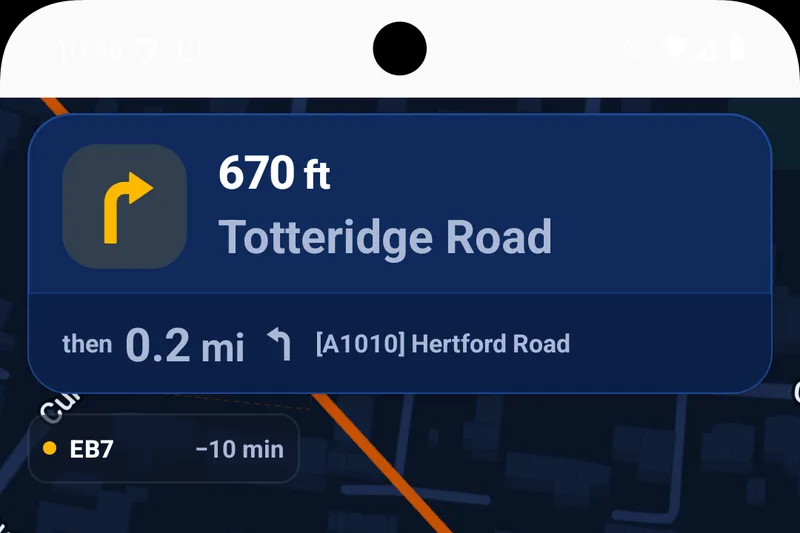
EB7 is en route to the same incident, arriving about ten minutes before you.
The panel shows up to four units, then folds the rest into +N more. Tap it to collapse the list to a single N attending pill, and tap again to expand it. When a new unit starts attending, or a unit lands on scene, the panel flashes and a short two-tone cue plays.
The panel doesn’t disappear when you arrive. As long as you’re near the scene, it stays on the map screen showing who’s still inbound — useful when you’re first there and deciding what can wait until backup lands.
Reading the panel
Section titled “Reading the panel”The dot tells you what a unit is doing:
| Dot | Meaning |
|---|---|
| Yellow | En route — actively navigating to the incident |
| Green | On scene — arrived and still there |
| Dimmed | Attending, but their data is stale or they’re not currently moving |
The time reads differently depending on what there is to compare:
| You see | It means |
|---|---|
+2 min | Arriving about two minutes after you |
−1 min | Arriving about a minute before you |
+0 min | Arriving with you, within about half a minute either way |
~10 min | About ten minutes out — shown when you’re already on scene |
| On scene | Arrived, still at the incident |
| — | Their data is too old to rely on |
While you’re driving, times are relative to your own arrival, because “two minutes behind me” is the number you actually make decisions with.
What counts as the same incident
Section titled “What counts as the same incident”Two crews are attending the same incident when their destinations are within about 200 metres of each other. That’s deliberate: control may give one crew the front of the building and another the RVP around the corner, and they should still count as the same job.
A unit becomes on scene when its navigation ends in arrival at that shared destination, and stays on scene while it remains nearby. Drive away — or start navigating to a new job — and the unit drops out of the panel. No ghost rows for the crew that got diverted.
Two ways ETAs are shared
Section titled “Two ways ETAs are shared”In a sharing group
Section titled “In a sharing group”For individual subscribers, shared ETAs ride on the same sharing groups used for live location sharing. Anyone in one of your groups who is sharing their location and navigating to your incident appears in the panel — and you in theirs.
Set-up takes a minute: join a colleague’s group with a 6-character share code, or create your own and invite them. See Location sharing & sharing groups for the full walkthrough.
Across an organisation
Section titled “Across an organisation”Organisation subscriptions can have ETA sharing enabled fleet-wide. When it’s on, every device on the subscription shares ETAs automatically — no groups, no codes, nothing to set up in the cab. Two crews dispatched to the same incident see each other from the moment they both start navigating.
Because it’s an organisational policy rather than a personal setting, it stays on regardless of the personal Share my location toggle. In exchange, its scope is deliberately narrow: colleagues only ever learn your ETA and position when you’re both attending the same incident. Organisation-wide ETA sharing is not a fleet map — see Units on the map below.
To get it enabled for your service, ask your account manager or contact us.
Units on the map
Section titled “Units on the map”Attending units aren’t just rows in a panel — you can see them moving on the map itself, callsign underneath, which matters when you need to know which direction other units are coming from.
Who appears on your map depends on the sharing mode:
- Sharing groups: group members appear whenever they’re sharing their location, wherever they’re going — that’s the point of a group.
- Organisation-wide ETA only sharing: a unit appears on your map only while it’s en route to, or on scene at, the same incident as you, and only while its position is fresh. No shared incident, no marker.
Set your callsign
Section titled “Set your callsign”Colleagues see you by callsign, so set one before you rely on this. Tap the round button at the right-hand end of the search bar (a two-people icon until sharing is set up), and fill in the Callsign field at the top of the screen. Chips and panel rows show the last three characters; your map marker carries the full thing.
Details and screenshots are on Location sharing & sharing groups.
Availability
Section titled “Availability”Shared ETAs need each crew to be sharing — via a common sharing group, or an organisation subscription with ETA sharing enabled.
The panel and status dots work across the Android, iOS and Windows apps, and are drawn directly on the map on CarPlay and Android Auto, so a crew navigating from the head unit sees the same picture as a crew on a phone. Android Automotive head units show attending units on organisation deployments.
Common questions
Section titled “Common questions”Why can’t I see a colleague’s ETA?
Section titled “Why can’t I see a colleague’s ETA?”Work down the list:
- Are you sharing with each other? You need a sharing group in common — with their Share location toggle on and sharing not expired — or organisation-wide ETA sharing on your subscription.
- Are they navigating? The panel shows units with an active route to your incident. A crew driving on local knowledge with no route set isn’t publishing an ETA.
- Is it the same incident? Destinations more than about 200 metres apart count as different jobs.
- Is their connection up? A unit whose data has gone stale dims, and drops out entirely after long enough.
How accurate are the times?
Section titled “How accurate are the times?”As accurate as the app’s own ETAs, because that’s what they are — each unit publishes the arrival time its own navigation is showing, calculated for its vehicle and routing mode, refreshed continuously as it drives. See Routing modes for how those ETAs are calculated under blue lights.