

Location sharing & sharing groups
Location sharing puts your colleagues on the map: a marker for each person who’s sharing, labelled with their callsign, live. It’s how the app answers “where are you?” without anyone touching the radio.
Sharing is built around organisation wide settings, OR, sharing groups — small, invite-only circles you create yourself. A group might be a watch, a station, a team on a single operation, or two colleagues who back each other up. Groups also power shared ETAs: when people in your group respond to the same incident, you see who’s coming and when they’ll arrive.
Where to find it
Section titled “Where to find it”Everything lives behind the round button at the right-hand end of the search bar, at the bottom of the map screen. What it shows tells you where you are:
| The button shows | Meaning |
|---|---|
| A yellow two-people icon | Sharing isn’t set up yet. Tap to open Sharing Groups. |
| Three characters (e.g. EB7) | You’re in a group. That’s the tail of your callsign; tap to update it or manage groups. |
If the button is missing entirely, your organisation has switched location sharing off for its deployment — see Organisation deployments below.
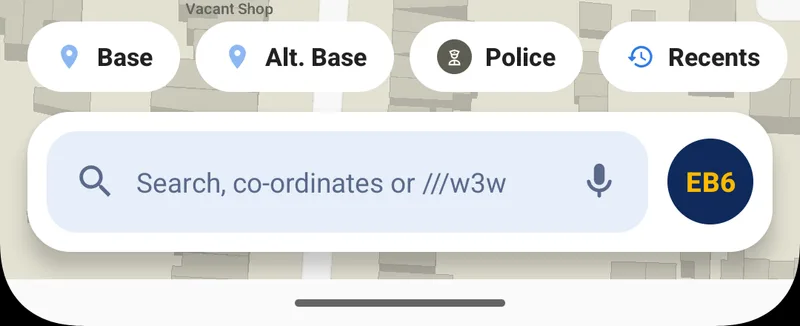
The round button at the end of the search bar — showing the tail of your callsign once sharing is set up — opens Sharing Groups.
Your callsign
Section titled “Your callsign”Your callsign is how colleagues identify you — on the map, in the colleague chips, and in the attending units panel. Set it at the top of the Sharing Groups screen: tap the field, type, done. Up to 12 characters, though on many devices only the last three are shown.
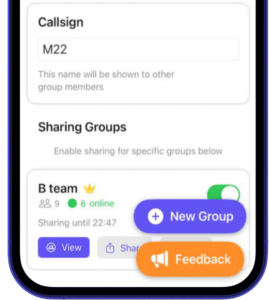
Callsign at the top, groups below. The toggle controls location sharing per group.
Where it appears:
- Chips and ETA rows show the last three characters, so ECHO-B7 reads as B7 at a glance. The hint under the field shows exactly which three colleagues will see.
- Your marker on the map carries the full callsign underneath it.
Use whatever your service would use on the air. If you leave it blank, the app falls back to a random identifier, which nobody will recognise — set it before you share.
Creating and joining groups
Section titled “Creating and joining groups”Tap + on the Sharing Groups screen and choose:
- Create Group — name it and you’re the admin. You’ll get an invite to pass on.
- Join Group — enter a 6-character share code, or paste an invite link someone sent you.
Share codes are short on purpose: something a colleague can read out across a cab or a briefing room.
To invite someone to a group you’re in, open the group and tap Invite. You can share the invite link through any messaging app, or just read the code out.
Each group shows its member count and how many are online right now. Group admins can rename the group, remove it, and manage members; everyone else can leave a group at any time and toggle whether they want to share location with individual groups.
Choosing when you’re visible
Section titled “Choosing when you’re visible”Nothing is shared until you say so, and sharing always switches itself off. Three controls:
- Share my location — the master switch.
- Share location, per group — each group has its own toggle, so you can be visible to your crew without being visible to a wider group you also belong to.
- Sharing duration — a global timer, from an hour up to a day (default 8 hours). The screen shows Sharing until 22:47 so there’s no doubt, and when the timer runs out, sharing stops on its own. Nobody stays on the map because they forgot.
While you’re sharing, Android shows a persistent notification with a Stop Sharing button, so you can kill it from anywhere without opening the app. Stop sharing — by toggle, timer or notification — and you drop off colleagues’ maps within a few seconds.
Colleagues on your map
Section titled “Colleagues on your map”Everyone in your groups who is currently sharing appears as a blue dot with their callsign written underneath. Tap the marker for details: speed, and when their position was last updated. If a phone is reporting a poor GPS fix, the circle grows and fades to show the uncertainty rather than pretending to be precise.
While you’re browsing the map, the app also shows chips for your two nearest sharing colleagues just below the street name, each with a callsign, a status dot and a live distance:
| Dot | Meaning |
|---|---|
| Green | Sharing, position fresh |
| Yellow | Navigating somewhere right now |
| Dimmed | Position is stale — no fresh fix in about 30 seconds |
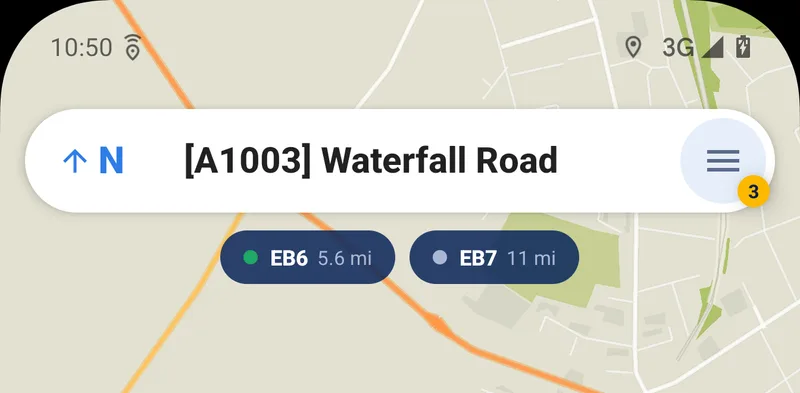
Two nearest colleagues, live distance and status, while you browse the map.
A dimmed chip also tells you when the colleague was last seen. Tap any chip and the map pans to that colleague. During navigation the chips give way to the attending units panel, which is about who’s coming to your incident rather than who’s nearby.
If you’re not in any group yet, the strip shows a single Add colleague chip instead — tap it to set sharing up.
Organisation deployments
Section titled “Organisation deployments”Organisation subscriptions handle sharing differently, and IT decides the policy:
- Provisioned groups. Enterprise accounts can have groups set up centrally, so crews are already grouped by station or function and never need to swap codes.
- Organisation-wide shared ETAs. With this enabled on the subscription, ETAs to a shared incident work across the whole organisation with no groups and no setup at all — see Shared ETAs for exactly what is and isn’t shared in that mode.
- Switched off. If your organisation hasn’t enabled sharing, the entry points are hidden and the app will tell you: Live Location Sharing is not enabled for your organisation.
Who can use it
Section titled “Who can use it”| Plan | Location sharing |
|---|---|
| Individual subscription | Full sharing groups |
| Organisation | Decided by your service — see above |
See Subscription & account for the difference between individual and organisation plans.
Location sharing works in the Android, iOS and Windows apps. CarPlay and Android Auto show your colleagues on the head unit too — chips and the attending units panel are drawn right on the car map.
Privacy
Section titled “Privacy”The rules are short:
- You’re only ever visible while you’ve chosen to share, to the groups you’ve chosen, and the timer guarantees an end point.
- Sharing is always signposted — the notification stays for as long as you’re visible.
- Your data is never sold or used for other purposes. See the privacy policy.
One honest caveat: under organisation-wide ETA sharing, visibility is your service’s policy rather than a personal preference — see the Shared ETAs page.