

Weight limits
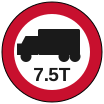
This page is about the round red-ringed sign with a lorry and a tonnage on it.
Most weight limits are environmental rather than structural. A local authority makes them by Traffic Regulation Order to keep heavy vehicles off residential streets and other roads never built for a steady stream of them. They’re aimed at stopping HGV rat-running—lorries using quiet residential routes to avoid busy arterials and industrial estates.
That is why Blue Light Maps treats weight differently to every other restriction.
The default: emergency mode routes through them
Section titled “The default: emergency mode routes through them”In emergency mode, weight limits are ignored by default. If the quickest way to the incident is through a residential street with a 7.5T limit to avoid HGV rat-running, that’s the way you get sent, with a lorry marker on the route so you can easily see it and choose to re-route & comply with the restriction.
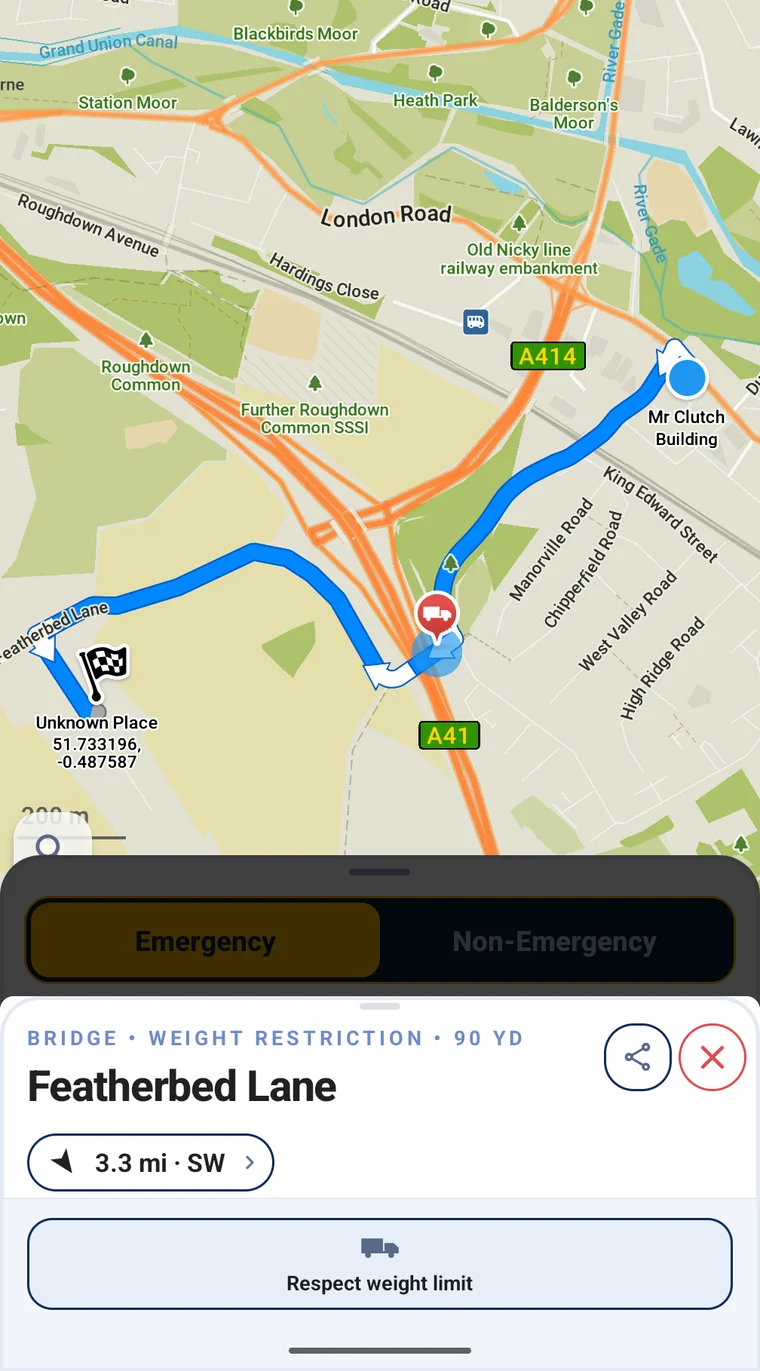
Emergency mode, exemption on: the route crosses the weight-restricted Featherbed Lane rather than going round it.
You can see which way it’s set without opening anything. The Driving options row on the route panel reads ignoring weight limits or respecting weight limits.
What is never exempt
Section titled “What is never exempt”Height and width stop you in every mode. A 3.2 m underpass stops a 3.5 m appliance under blue lights exactly as it does on the way back to station. Weight is the only restriction the app will route you through.
Non-emergency mode obeys them
Section titled “Non-emergency mode obeys them”Switch to non-emergency and weight limits stop you like everything else. The route takes the long way round, and the app marks the restrictions it steered you around so you can see why the route looks longer than it should.
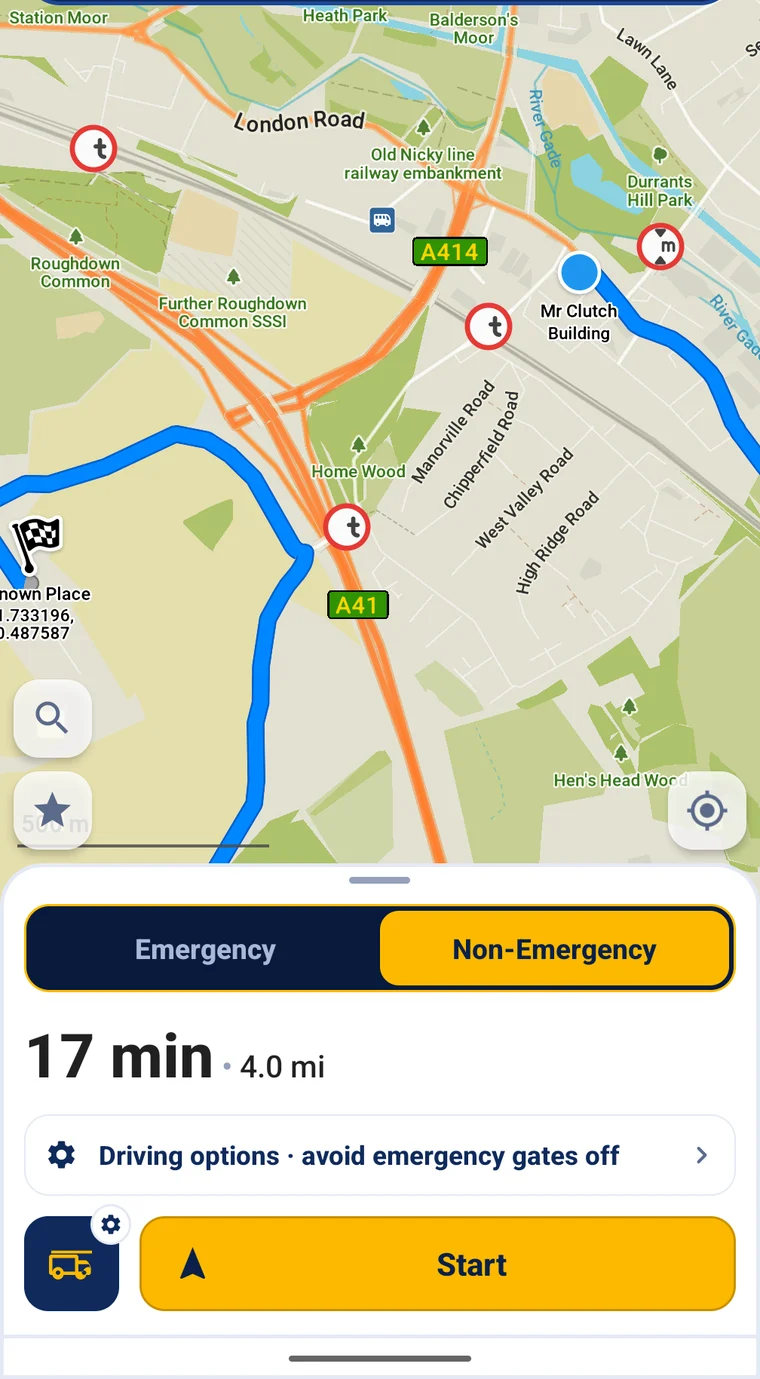
The same journey in non-emergency mode: round the outside, with each limit it avoided marked on the road it applies to.
Each mark sits on the road it applies to, not on your route:
| Mark | Meaning |
|---|---|
 | Routed around a weight limit. t for tonnes |
 | Routed around a height limit. m for metres |
 | Routed around a width limit |
 | Routed around a road carrying more than one of them. The same pin marks a limit you’re being routed across under exemption. |
Tap one to see the road name and the limit itself, written the way the sign is:
7.5 t, or 3.50 m / 11'6".
Only detours that actually cost you time are marked, so a limit you’d have driven past anyway doesn’t clutter the map. The app shows at most 12 marks per route.
Telling it to respect a limit
Section titled “Telling it to respect a limit”Tap the marker on the route, then Respect weight limit. You get a choice rather than a single switch:
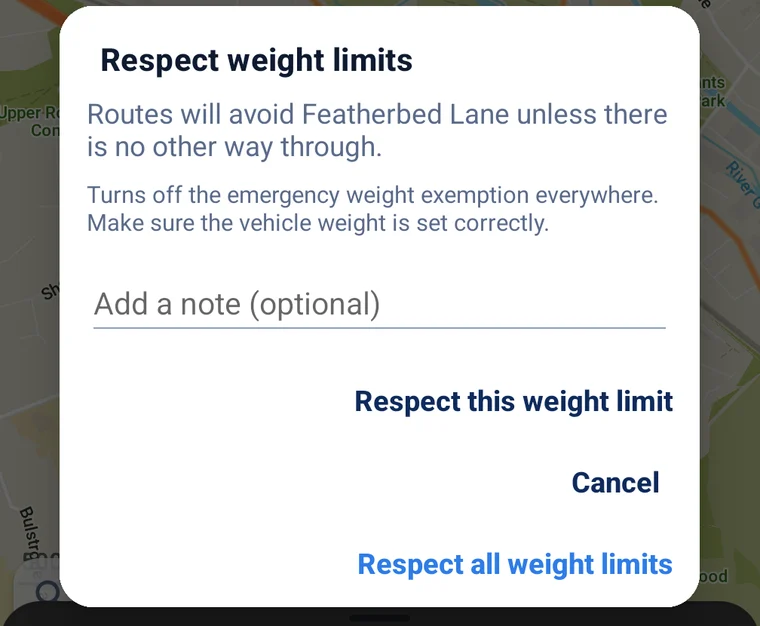
One road, or everywhere.
- Respect this weight limit. This road only. Everywhere else keeps the exemption. Use this for roads your service has a local instruction about.
- Respect all weight limits. Turns the exemption off everywhere, for every route, until you switch Ignore weight restrictions back on in Driving options. Check your vehicle weight is right before you do.
The note is optional. It’s stored on the device alongside the road name and shown under that road in your list. It doesn’t go to control or to anyone else.
You still get a route
Section titled “You still get a route”Under blue lights, a limit you’ve asked the app to respect is strongly avoided. If it’s genuinely the only way through you still get the route, still with the marker on it, and the place page tells you Respected — no other route found. A crew who asked to respect a limit still needs a route, and giving them nothing is worse than giving them the road and a warning.
It survives restarts
Section titled “It survives restarts”Flagged roads are saved to the device the moment you tap.
Your flagged roads
Section titled “Your flagged roads”Driving options → Respected weight limits lists every road you’ve flagged, with its note. Roads are removed there, or from the route marker itself (Stop respecting this limit).
The list is hidden while Respect all weight limits is on, because with that on every limit is already respected. Your entries are still there and come back when you turn the exemption on again.
CarPlay, Android Auto and the Windows app carry the all-or-nothing setting only. Per-road exceptions are managed on the phone.